
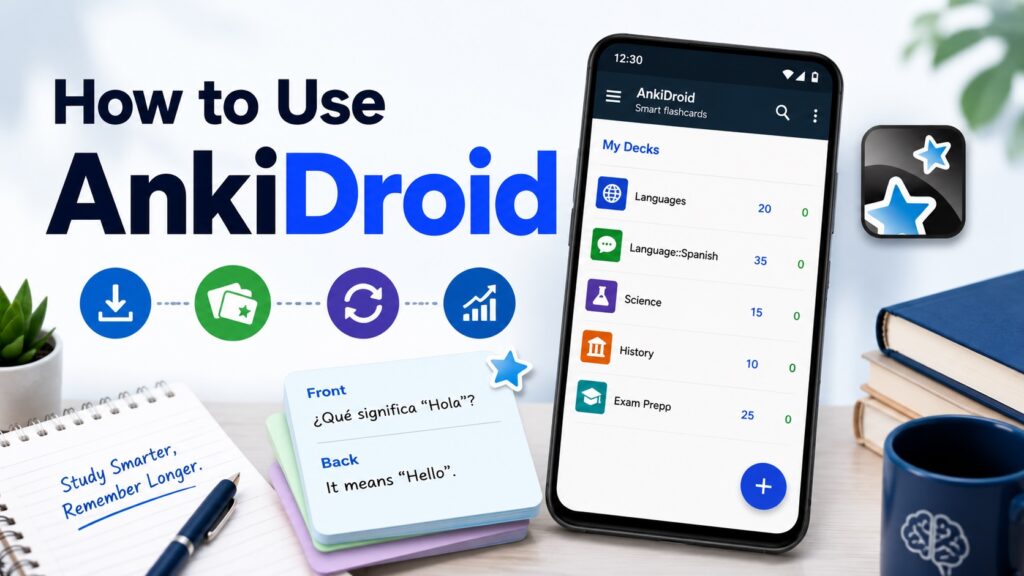
Although Ankidroid app is excellent for learning, many learners still struggle with how to use Ankidroid. This is why we have written this article. It will help you understand how to use AnkiDroid.
How to use AnkiDroid?
It is very frustrating to forget what we have studied for many days. You spend hours reviewing notes. But blanking out during a test or presentation makes our hard work useless.
AnkiDroid can help you fix this problem instantly. It is a free open-source flashcard app for Android for students, language learners, professionals, and anyone who needs to remember large amounts of data without wasting time.
It will provide you with easy steps to build your digital flashcards, download pre-made study lists, and manage the app to your custom schedule.
How To Download AnkiDroid On Your Mobile
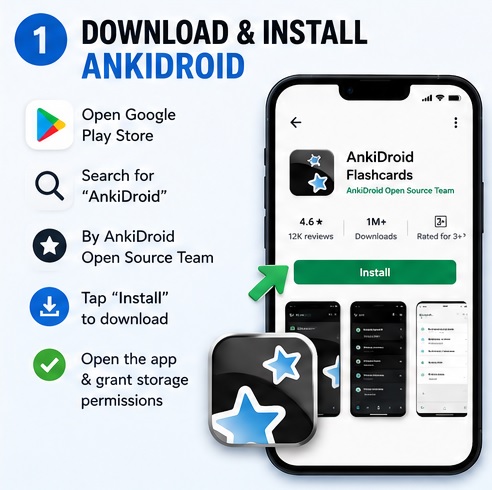
- You must first open the Google Play Store on your Android device.
- Type “AnkiDroid” into the top search bar.
- You now have to find the official app by AnkiDroid Open Source Team.
- You can tap on the Download button if you want to download it to your device.
Installation
The setup process starts automatically once the file finishes downloading. You must, however, follow these steps:
- Choose the install option if asked.
- Wait a few seconds for the system to unpack the files.
- Tap the new icon on your app menu to open it for the first time on your device.
- Give the important permissions for storage. It will help the app to save your flashcards.
Creating Decks
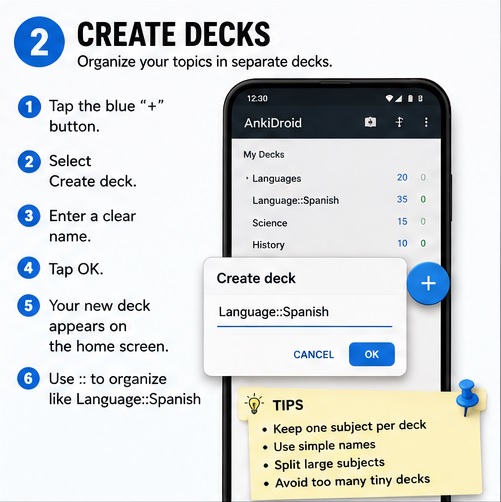
A deck is only a folder or category where your flashcards are usually stored. You should organise your topics into separate holders. It helps keep your study sessions focused.
Here are the steps you can follow to create a deck:
- You must find the blue + button located at the bottom right corner of the home screen.
- Select Create deck from the list of options.
- You can now type a clear name for your new category.
- Just press the OK button. Your new folder will quickly come up on the main menu list.
- You can use a double colon naming convention like Parent:: Child or Language:: Spanish.
Tips for organizing decks
- Keep one subject per deck.
- Use simple names.
- Split large subjects into smaller sections.
- Avoid creating too many tiny decks.
Adding Cards
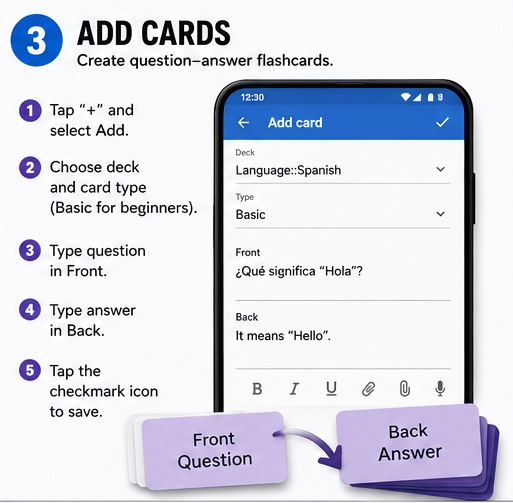
You can start filling them with specific question-and-answer flashcards after your folders are ready. Steps to create your cards are:
- Tap the big blue + button again and choose Add.
- Find the top dropdown menus to choose the folder and card type. The “Basic” type is perfect for you if you are a beginner.
- Type your question into the Front field.
- Type your answer into the Back field.
- You must now tap the checkmark icon in the top app bar to save your flashcard.
Flashcards are the heart of this app. For those unaware, each card has a question on one side and its answer on the other.
Sync with AnkiWeb
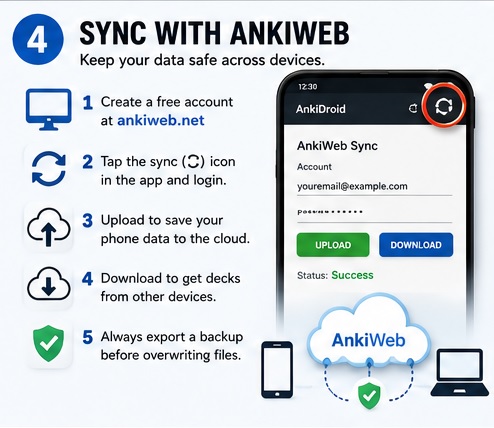
Syncing is important if you don’t want to lose your data. It connects your mobile devices to a free cloud service. You can easily do it with these steps:
- Go to the official website on a web browser and sign up for a free account. You can skip this step if you have created your account previously.
- Tap on the circular arrows icon on the top right side in the app. Then enter your login details.
- Click the upload button next if your phone has cards you want to save to the cloud. It may take a few minutes in case you have more files.
- Choose the Download button if you already have decks on your desktop computer to pull them down to your phone.
- You can also export a backup of your local cards before choosing to overwrite the files. It will help you resolve a merge conflict where changes happen on both devices.
You can also use the USB method when you are having trouble syncing. The USB method is, however, more complicated.
Study Settings
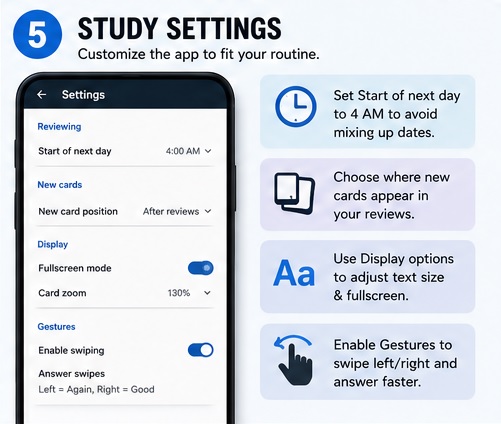
These steps will let you change your study settings to match your everyday routine:
- You must open the left side menu and tap Settings.
- Find Reviewing and adjust the Start of next day option. You can set this to 4 AM because it prevents the app from mixing up your dates if you study after midnight.
- You can also change the New Card position via Settings to decide if new cards come before, after, or mixed together with your daily reviews.
- You may also visit the Display menu to turn on Fullscreen mode or enlarge your text via Card zoom.
- You can also set up swiping movements under Gestures. It will help you answer questions instantly without pressing buttons simultaneously.
Tips for using Ankidroid
- It would be best to use the formatting bar to make keywords bold or italicised to create visual effects.
- You should also use the paperclip icon located next to the text boxes. It is helpful to attach audio recordings or images.
- Use the MathJax feature by typing equations inside \( and \) markers for clean scientific text. It is an advanced typesetting library for math and chemistry.
- You can also create a cloze deletion by long-pressing a word while editing.
- You should also connect an Android-compatible gamepad to your phone. It will help you to flip the cards instantly using the controller buttons during long study sessions.
Read Also,
Flashcards for Language Learning: Best 3 Flashcard Apps Compared
Common Mistakes while using Ankidroid
- You should avoid adding more than 20 new cards daily. It can overwhelm your schedule a week later when those cards come back for review.
- You must not forget to sync your file across your computer and other devices. Neglecting syncing could generate a file tension when you open your mobile phones.
- Sometimes putting an entire paragraph might test your patience later. This is because you should keep your questions and answers short.
- You must import your text file first because AnkiDroid cannot parse your raw text list directly.
- Avoid changing the storage location folder inside advanced settings because it can accidentally hide your files from the app.
Recap of How to use Ankidroid
AnkiDroid is a powerful flashcard app to remember information through spaced repetition. You can use it effectively after knowing the basics without spending hours to understand its basic features.
Here’s a quick overview:
- Download and install AnkiDroid from the Google Play Store.
- You can create separate decks to organize subjects or topics.
- Add flashcards with questions on the front and answers on the back.
- Sync your data with AnkiWeb to keep your cards backed up across devices.
- Adjust study settings to match your learning style.
- You can make your flashcards engaging using advanced features like images, audio, MathJax, and cloze deletions.
- Avoid common mistakes like adding too many new cards at once, skipping backups, or creating overly long flashcards.
FAQs on How to use Ankidroid
Can I use AnkiDroid without a desktop computer?
Yes, you can use AnkiDroid to build cards, sort folders, and complete reviews completely on your phone. Creating several cards or editing complex layouts, however, is faster on a computer.
Why are my card counts showing zero?
It means that you have finished all scheduled tasks for the day. The app also hides cards until they are mathematically pending for a review session.
What is a filtered deck?
It is a temporary folder to pull specific cards from the main collection based on custom search terms. This feature helps you study for an upcoming test without destroying your main automated schedule.
How do I use non-standard text fonts?
You must drop the font directly into your collection.media folder to add custom fonts. It would be best to set up the font styling in the desktop app first and sync the changes to your phone later.